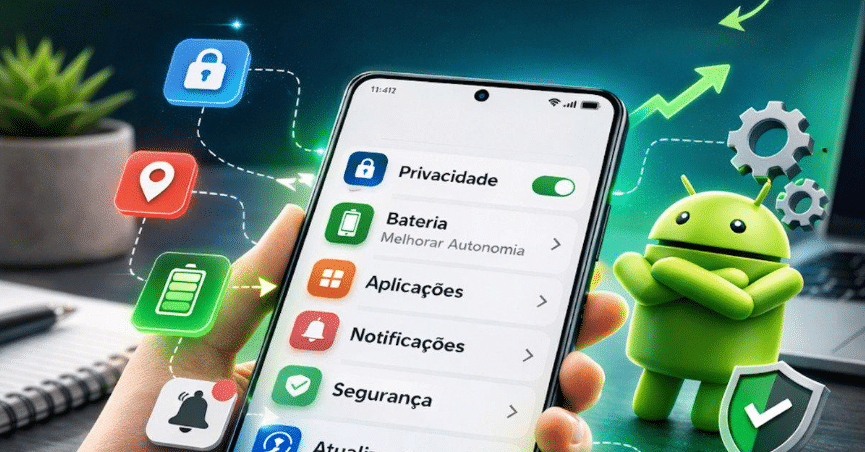
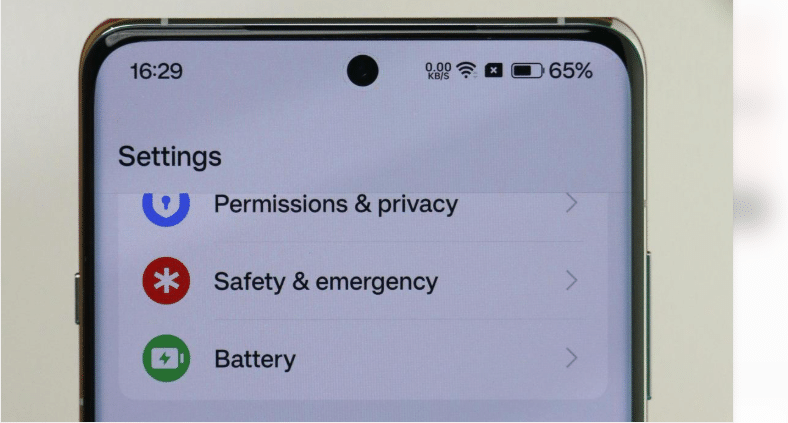
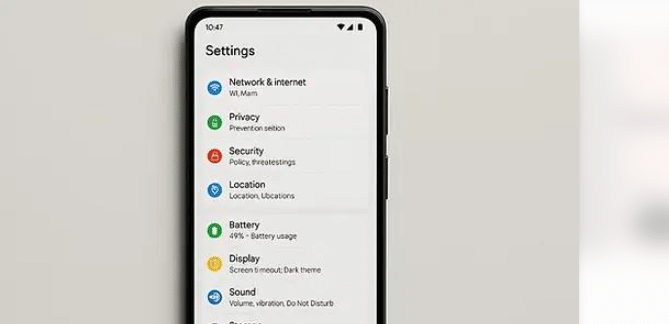
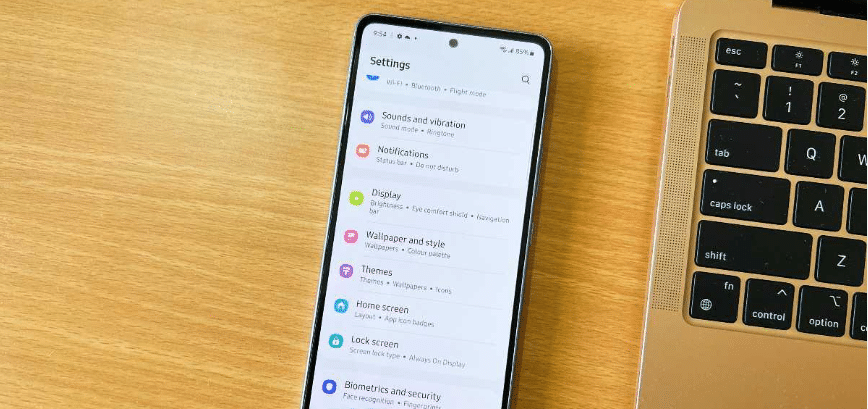
YYour Android phone holds useful features that you may never have explored. Some settings on your Android phone can protect your privacy cut down on notifications improve battery life and make your Android phone easier to use.
The good news about your Android phone is that you usually do not need to install another app to use these options. Many of them are already, in the Settings menu on your Android phone although the names and places can differ on Samsung, Xiaomi, Infinix, Tecno, Google Pixel and other devices.
In this guide I will talk, about ten Android settings that’re worth checking today. Each tip tells what the Android settings does why it could be useful and how to find it on your phone.
Note: Menu names may be different depending on your Android version and phone manufacturer. If you cannot find a setting try using the search bar at the top of your phones Settings app.
1. Review App Permissions
Some apps ask you to give them access to your location, camera, microphone, contacts or photos. Some permissions are necessary for an app to do its job while other permissions may not be needed for the app’s purpose.
Reviewing app permissions helps you decide which apps should have access, to information.
How to Check App Permissions
Open Settings.
Select Privacy or Security & privacy.
Open Permission manager or Permission usage.
Select a permission, such as Location, Camera, or Microphone.
Review the apps that have access and change permissions where appropriate.
On some devices, you can also open Settings → Apps → Select an app → Permissions.
Which Permissions Should You Review?
Make sure to focus on location, microphone, camera, contacts and photos or videos.
For instance a navigation app might need location access while you use it. A simple calculator usually does not need access, to your location or microphone.
Tip: Pick settings such, as “Allow only while using the app” when they fit your needs.
Do not turn off permissions that an app truly needs for a feature you use.
2. Turn On Find My Device
Losing a phone can be really stressful. Especially if it has photos your contacts, messages and important accounts on it.
Android’s Find My Device feature now included in Google’s Find Hub experience, on supported devices can help you find your lost phone. It lets you take some actions from afar.
How to Enable It
Open Settings.
Search for Find My Device or Find Hub.
Open the relevant setting.
Turn it on if it is not already enabled.
Make sure your Google account is properly signed in.
The exact options depend on your phone and software version. Location, internet access, account settings, and other conditions may affect the ability to locate a device.
Why Is It Useful?
Depending on your device and available features, you may be able to locate your phone, make it ring, secure it, or erase its data remotely.
Important: Remote erasure can permanently delete data from the device. Use it only when necessary and keep a backup of important information.
3. Enable Two-Step Verification for Your Google Account
Your Google account may be linked to Gmail, Google Photos, contacts, backups and other services. Protecting your Google account is a part of keeping your Android phone safe.
Two-step verification adds another layer of safety when you sign in. Even if someone finds your Google account password they will still need the verification step, from two-step verification.
How to Enable It
Open your Google Account settings.
Select Security.
Find 2-Step Verification.
Follow the instructions to configure an available verification method.
You can also review your signed-in devices and account security alerts.
Which Verification Method Should You Use?
Where available a passkey or a security key can give you protection. Google prompts and authenticator apps are also options. SMS verification may be better than having no protection but SMS verification has its own limits.
Keep your recovery information up, to date. Never share verification codes with someone who contacts you unexpectedly.
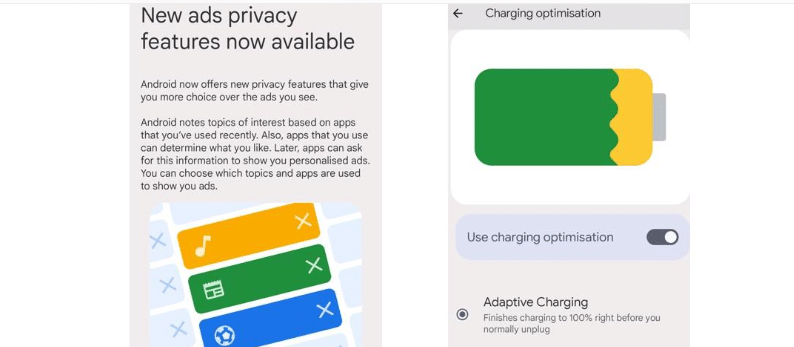
4. Restrict Background Battery Usage for Unnecessary Apps
Some apps keep doing work even when you are not using them. Depending on the app this kind of activity can cause the battery to drain faster or create background work.
Android has settings that can help control what certain apps do in the background. These settings can be used to restrict the actions of apps.
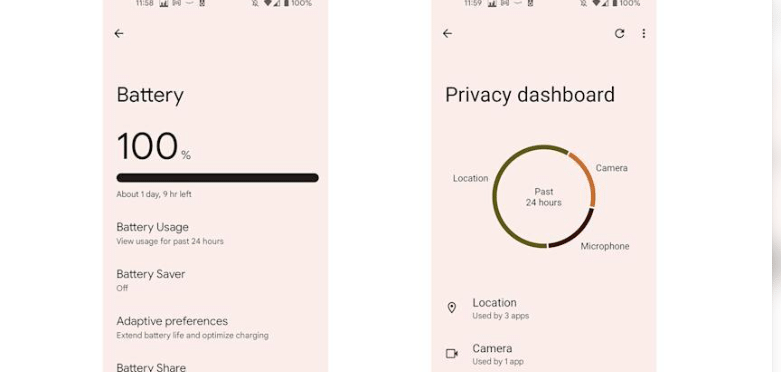
How to Check Battery Usage
Open Settings.
Select Battery.
Open Battery usage or a similarly named option.
Review which apps use the most battery.
Open the settings for an app that uses more power than expected.
Review its background activity or battery usage options.
On some devices, the relevant option may appear under Settings → Apps → App battery usage.
Which Apps Should You Restrict?
Consider limiting work that apps do in the background if they don’t need to send quick messages or change often.
Don’t stop every app too much. If you do that it could make messages, email alerts, copies or other key tasks happen later than they should.
Tip: Look at how power the apps use over days before making changes. A short time when an app uses a lot of power doesn’t always mean it is not working right.
5. Turn On Google Play Protect
Installing apps from sources that you don’t trust can put your phone at risk of getting software and security problems.
Google Play Protect looks at apps to see if they act in a way and might tell you about some security issues.
How to Check Play Protect
Open the Google Play Store.
Tap your profile picture.
Select Play Protect.
Review the security status.
Run a scan if the option is available.
Check that app scanning is enabled.
Play Protect helps improve security, but it cannot guarantee that every harmful app or threat will be detected.
Why Should You Use It?
It provides an additional layer of protection when installing and using Android apps.
You should also keep Android updated, install apps from trustworthy sources, review app permissions, and avoid suspicious links or downloads.
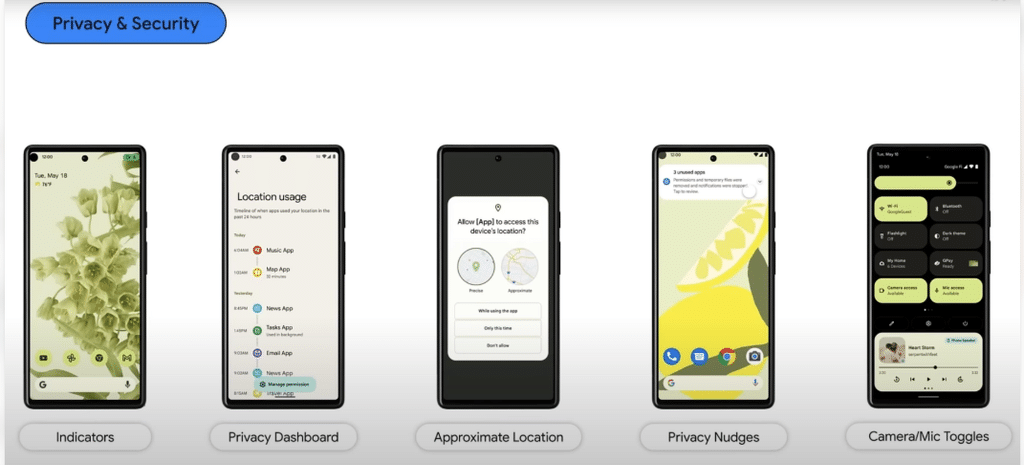
Recent Android versions come with privacy controls that let you manage how apps use your camera and microphone.
On some devices you can find system- camera and microphone toggles, in Quick Settings. When these toggles are available they can temporarily stop apps from accessing the camera and microphone.
How to Find These Controls
Swipe down from the top of the screen to open Quick Settings.
Swipe down again to see more controls.
Look for Camera access and Microphone access.
If available, use the relevant toggle to disable access temporarily.
The exact availability and behaviour depend on the Android version and manufacturer.
Why Are These Settings Useful?
They offer you a way to control when applications can use your camera or your microphone.
Remember that turning off access for everything may stop features like video calls or voice messages from working until you turn it back on.
You need to check the permission settings for each app on its own of just using the settings, for the whole system.
7. Reduce Unnecessary Notifications
Frequent notifications can break your focus. Notifications pull your attention away. Make it harder to notice important messages.
I find that Android allows me to manage notifications, by app and often by notification category.
How to Manage Notifications
Open Settings.
Select Notifications.
Open App notifications.
Review the apps that send notifications.
Turn off notifications you do not need.
You can also press and hold a notification and open its settings to manage the relevant notification category.
Which Notifications Can You Turn Off?
Consider disabling unnecessary promotional alerts from shopping apps, games, or services you rarely use.
Keep notifications turned on for messaging, banking security alerts, work tools and other services where getting information quickly is crucial.
Tip: If an app has categories you can turn off promotional notifications while keeping important notifications active. This way promotional notifications do not bother you. Important notifications still get through.
8. Set Up a Strong Screen Lock
Screen lock is one of the lines of defence, against someone accessing your phone without permission.
A strong PIN or password can help protect your data if your phone is lost or temporarily left unattended.
How to Set It Up
Open Settings.
Select Security & privacy or Lock screen.
Open Screen lock.
Choose a PIN, password, or another supported secure method.
Follow the on-screen instructions.
You can also enable fingerprint or face unlock if your device supports it.
What Makes a Good Screen Lock?
Use a PIN that’s not easy to guess, like your birth date or a simple repeated sequence. A longer PIN or a strong password can offer protection.
Biometric unlock is convenient. Make sure to keep a strong backup PIN or a strong password.
If your phone has lock screen notification controls check if message previews should appear when the device is locked. Lock screen notification controls should be checked to decide if message previews are visible.
9. Check Google Photos Backup Settings
Photos and videos can be some of the important files on your phone. If the phone is lost or broken having those files backed up can make recovery much easier.
Google Photos has features but its important to make sure backup is actually turned on. You should also check which account is being used for the backup. This helps avoid losing access, to your photos and videos.
How to Check Backup
Open Google Photos.
Tap your profile picture.
Open Photos settings.
Select Backup.
Review the backup status and account.
Check the selected upload quality and other available options.
Menu names may differ slightly depending on the app version.
Important Things to Know
Backup requires an internet connection and enough free storage space.
Your Google account storage might be used by Google services at the same time.
Changing backup settings can influence how mobile data you use.
When you back up photos it does not mean all the files, on your phone are being saved.
Do not delete original photographs simply because you have enabled backup. First confirm that the files have successfully uploaded and are accessible from your account.
10. Review Location and Location History Settings
Location access helps maps, navigation, weather ride-hailing and other apps deliver services that’re relevant to where you are.. Not every app needs to know your location all the time.
Checking these settings lets you find a balance, between having features and protecting your privacy. You can decide which apps get access and when. This way you stay in control of your information..
How to Check Location Access
Open Settings.
Select Location.
Open App location permissions or a similar option.
Review which apps can access your location.
Change access for apps that do not need it.
Where possible pick “Allow only while using the app” of giving permission for constant access.
You can also check your Google Accounts Location History or Timeline settings on their own. These account-wide options are not the same, as app location permissions.
Should You Turn Location Off Completely?
Not necessarily. Turning off location can hurt navigation finding a device, weather services and other useful features.
A better approach is to give location access, to apps that need it and choose the best location permission level.
Bonus Tip: Keep Android and Your Apps Updated
Although this is not a hidden setting, keeping your software updated is an important security habit.
Check for an Android Update
Open Settings.
Select System or Software update.
Tap Check, for updates or Download and install.
Follow the instructions if an update is available.
The location of this option differs between manufacturers. Samsung, for example, commonly places it under Settings → Software update.
Updates can include security fixes. Updates can include bug fixes. Updates can include features. Not every phone gets the updates. Availability of updates depends on the model. Availability of updates depends on the manufacturer.
Frequently Asked Questions
Which Android settings should I change first?
Begin by reviewing app permissions enabling device-finding features securing your Google account checking Play Protect and setting a screen lock. These app permissions, device-finding features, Google account, Play Protect and screen lock steps can improve your phones security and privacy.
Can changing Android settings improve battery life?
Some settings can help cut down on battery drain especially if you spot apps that run much in the background. But how much it helps depends on your phone the apps you use how old your battery. How you use your device every day.
Are these settings available on every Android phone?
Not always. Android versions are different. Manufacturer interfaces are different. Use the Settings search bar to look for the feature. Check your phone manufacturers support documentation if you cannot find it.
Should I disable all app permissions?
No. Some apps need certain permissions to perform their intended functions. I find it helpful to look at each permission one by one. Review permissions individually. Restrict access only when access is unnecessary or inconsistent, with how you use the app.
Is Google Play Protect enough to secure my phone?
No one security feature can offer protection. Use Play Protect with software updates a screen lock, account security, careful app installation and smart browsing habits.
Will these settings make my Android phone faster?
Some changes might reduce interruptions. Stop unnecessary background tasks but they won’t make an older phone run faster in terms of hardware.
Don’t say that every privacy or battery setting will boost speed. That’s not true.
Final Thoughts
Your Android phone includes many settings that can help you manage privacy, security, battery usage, notifications, and backups.
You do not need to change everything at. Start with the settings that matter most to you like app permissions Find My Device Google account security, Play Protect and battery usage.
Since Android phones can be different take a moment to look at each option carefully before making any changes. The goal is not to turn off every feature but to help your phone work better, for your needs and keep your information safe.