How to Free Up Storage on Android (2026 Guide)
Is your Android phone showing a “Storage Full” warning even though you don’t want to delete your photos videos, WhatsApp chats or important documents? Don’t worry. In cases you can free up storage by clearing temporary files managing downloads removing duplicate media and moving files to a safe backup location.
When your phone runs low on space, installing apps downloading files and recording videos can become difficult. The good news is that you don’t need to delete everything to solve the problem.
In this guide you will learn how to free up storage on Android without deleting any files. These simple steps help you free up storage, on Android phones, including Samsung, Infinix, Xiaomi Redmi, Tecno and other brands. Remember that the names of the menus may differ depending on the phone model and the Android version.
Why Does Android Storage Fill Up So Quickly?

Your phone’s storage can fill up for several reasons. The most common include:
- App cache: I see that App cache holds files that apps create while you use them.
- WhatsApp media: I notice that WhatsApp media includes photos, videos, voice notes and any files you forward in chats and groups.
- Videos: I see that Large videos, such, as camera recordings and downloaded videos can occupy a lot of space.
- Downloads: I notice that Downloads contain PDFs, documents, APK files and other items that you may no longer need.
- Offline content: I see that Offline content consists of songs, movies, maps and other media that you have downloaded.
- Apps: I notice that Unused apps are applications you installed once but rarely open.
- Files: I see that Duplicate files are multiple copies of the same photo, video or document.
Before deleting anything, check which category is using the most storage. This helps you choose the safest way to make space.
1. Check Which Files Are Using Your Storage
The first step is to understand where your storage has gone. Avoid deleting files randomly because you might remove something you need later.
Follow these steps:
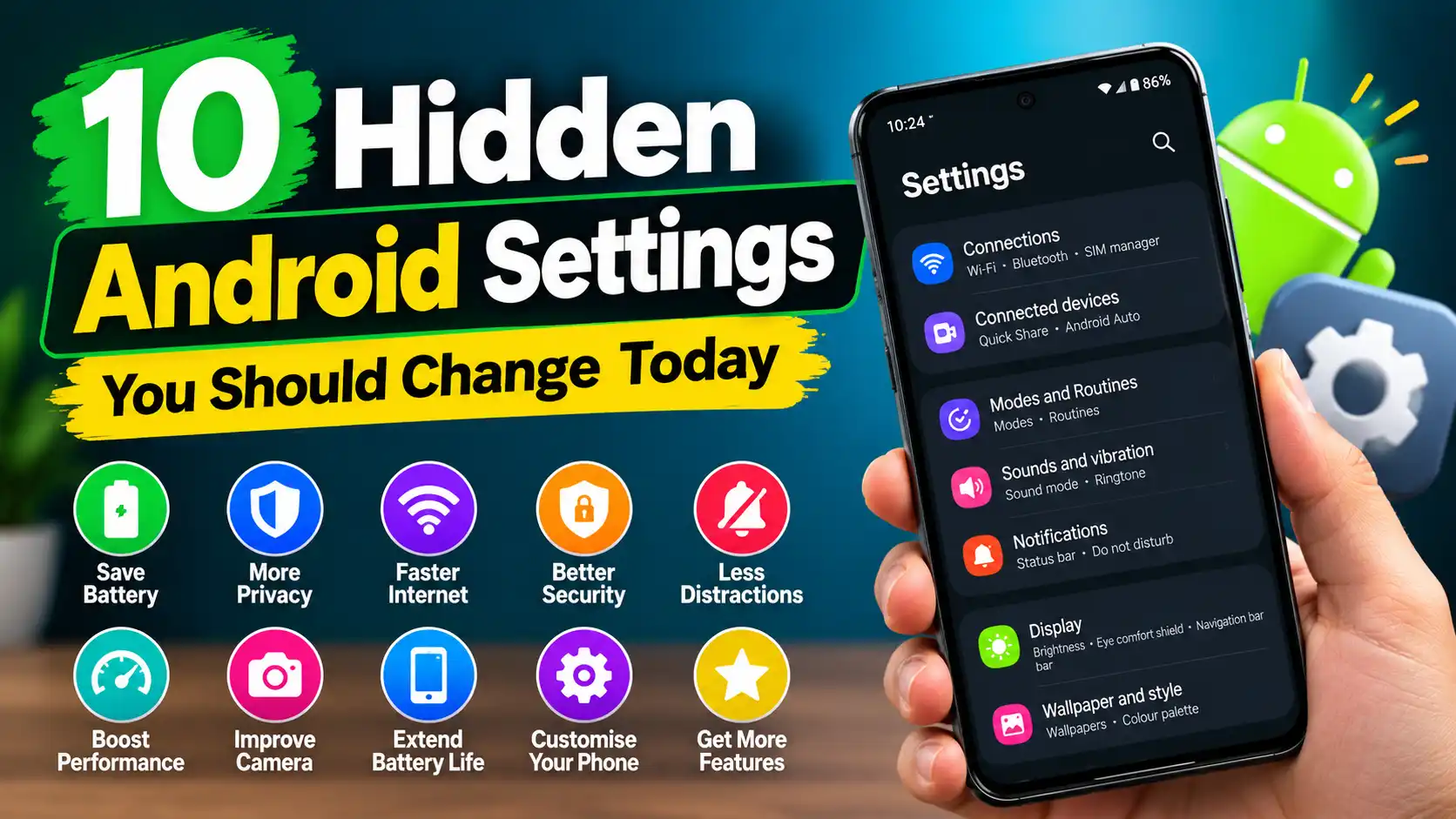
- Open Settings on your Android phone just tap the Settings icon on your home screen.
- Find Storage. Tap it. Some phones may label this section as Battery and device care, Device maintenance or something similar but you still need to find Storage.
- Check how much space is used by apps, photos, videos, documents and other files, in Storage.
- Open the category using the most space to review its contents.
For example, if videos are taking up most of your storage, focus on large recordings and downloaded clips rather than deleting useful apps.
Tip: Take a picture of the screen that shows how storage you have before you start cleaning. You can look at it again after you are done to see how space you got back.
2. Clear App Cache Without Removing Your Personal Data
Clearing an app cache is one of the ways to free up Android storage without deleting personal files.
Apps such, as browsers, social media platforms and streaming services store data to load content faster. Over time the app cache can grow.
How to clear app cache
- Open Settings.
- Tap Apps or Applications.
- Choose an app that is taking up a lot of storage.
- Go to Storage or Storage and cache.
- Tap Clear cache.
Repeat these steps for other apps if necessary.
Remember that the exact amount of space that is freed up depends on the app. Some apps might have little cache while others might keep a lot more.
Important: Choose cache, not Clear data or Clear storage. Clearing an apps data can remove its settings downloaded content or stored information. Always check the label before confirming.
3. Use Files by Google to Find Unnecessary Files
Files, by Google can help you find junk files. It can help you find items. It can help you find files. It can give you cleanup suggestions. It is especially helpful if you do not know what is taking up your storage.
Steps to clean your phone
- Open the Files by Google app. If you don’t have it, get it from the official Google Play Store.
- Open the Clean section.
- Review the available cleanup suggestions.
- Open a suggestion to inspect the files.
- Select only the items you are comfortable removing.
- Confirm the cleanup.
Do not automatically accept every suggestion. Examine files carefully documents, photos, videos and downloads that may be important.
Google notes that clearing junk files or deleting files through Files by Google can permanently delete selected files. Check files before confirming.
4. Free Up WhatsApp Storage Without Deleting Important Chats

WhatsApp can use a lot of storage because pictures, videos, voice messages and forwarded files pile up over time. I have seen my phone run out of space because of WhatsApp media.
The good news is that you can delete selected media on WhatsApp without having to delete the conversation.
How to manage WhatsApp storage
- Open WhatsApp.
- Go to Settings.
- Find Storage and data or the storage-management option available in your version.
- Open Manage storage.
- Review large files and media taking up space.
- Open a chat or category and select only the unnecessary items.
- Delete the selected media after checking it carefully.
You can begin with videos that were sent to you by others funny pictures that have been shared many times unclear photos and long recordings that you don’t need anymore.
Keep important WhatsApp files safe
Before you remove any media take a moment to check if it includes work documents, receipts, family photos or other important stuff. If it does save those files to a folder or back them up first. Don’t rush to delete just because it’s old or takes up space.
If you want to keep your chat history don’t delete chats. That can mess things up. Also if you remove a photo or video, from WhatsApp storage you might not be able to see that media in the conversation. It’s just gone from the chat even if it’s still on your phone. So think before hitting delete.
5. Delete Unnecessary Downloads Instead of Important Documents
Your Downloads folder could have files you no longer need. These might include installation files, extra PDFs, pictures and documents you downloaded for a single purpose.
To review your downloads:
- Open Files by Google or your phone’s file manager.
- Open Downloads.
- Sort or review files by size, if the option is available.
- Open unfamiliar files before deciding what to do with them.
- Delete only items you recognize and no longer need.
After making sure that the installed application is working properly, you can also check the old APK installation file.
Don’t delete a document just because its name is unknown. It can be a bank statement, a workbook, an identity document or an important attachment.
6. Back Up Photos and Videos Before Removing Local Copies
Photos and videos take up a lot of space on an android phone. If you want to keep your memories safe make a backup first before you delete the copies on your phone. Photos and videos take up a lot of space on an android phone. If you want to keep your memories safe make a backup first before you delete the copies on your phone.
You have several options:
- Google Photos: Back up photos and videos to your Google Account, depending on available storage space.
- Computer or laptop: Transfer files via USB cable. External storage: Copy files to a compatible USB flash drive or SD card (if your phone supports it).
- Cloud storage: Use a reliable cloud service with enough free space.
Safely remove backed-up photos
If you use Google Photos first check that the backup has finished.
Open some of the photos that have been backed up while you are online to make sure they are in your account.
After that use the apps up space feature if it exists, to delete local copies that have already been backed up.
Do not delete photos manually until you know how your chosen app deals with deletion and syncing.
Regularly deleting photos, inside a photo app can also affect the cloud copies depending on the action you pick.
Remember: A backup is only useful if it completed successfully and you can access it. Never assume a photo is backed up just because it appears in Google Photos.
7. Remove Offline Downloads From Streaming Apps

Music, movies, podcasts and offline videos can use a lot of space on your device. You might be able to remove the downloaded copies without losing your account or playlists.
Check apps such as:
- YouTube is a video platform and YouTube Music is a music platform.
- Netflix is a movie and TV show platform and other streaming apps also provide content.
- Google TV is a service that lets users watch shows and movies on a television.
- Podcast apps let users listen to audio shows and music apps play songs.
- Offline navigation apps help users find directions even when there is no internet.
Open the app and find the section called Downloads or Offline content or Manage downloads. Delete the items that you can watch again or get later when you want.
Keep in mind that deleting a downloaded file means you might need to use the internet to get it.
8. Uninstall Apps You No Longer Use
Unused apps can occupy storage even if you rarely open them. Review your installed apps and identify those you no longer need.
- Open Settings.
- Tap Apps.
- Look through the installed applications.
- Choose an app that you know. No longer use.
- Tap Uninstall, if it is available.
If your Android version has app archiving you might be able to archive apps that’re eligible. This helps free up space. It keeps some of the app’s data. Later you can restore the app long as it’s still available.
Don’t remove system apps or apps you don’t know. If an app has files saved locally back them up or export them before you uninstall the app.
9. Move Large Files to a Computer or External Storage
If you have many important files, moving them is better than deleting them.
Transfer files to a computer
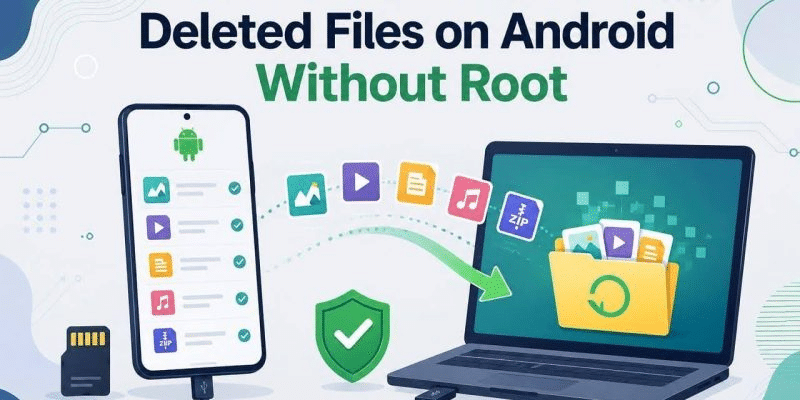
- Connect your Android phone to a computer with a USB cable.
- Unlock your Android phone.
- Choose the USB setting for example File transfer, when asked.
- Open the Android phone storage on the computer.
- Copy the chosen photos, videos and documents to a folder, on the computer.
- Open a copied files to verify that the transfer succeeded.
- After that consider deleting the original copies from the Android phone..
You can also use a compatible SD card or external USB drive. Not every Android phone supports expandable storage, so check your device’s specifications first.
For particularly important documents or irreplaceable photos, keep a second backup if possible.
10. Stop WhatsApp From Filling Your Storage Again
If your application continues to download large amounts of media, clearing the storage may not be enough.
To further reduce confusion, open WhatsApp and tick Settings > Storage & data > Download media automatically. Depending on the version of the app, you can adjust the automatic download time of photos, audio, video and files.
If you want to control whether new WhatsApp media files appear in your phone gallery, you can also check Settings > Chats > Media Visibility. This setting does not necessarily prevent media from using storage.
For group chats that share many videos, review the storage they use from time to time and remove only the items you don’t need.
11. Restart Your Phone and Check Storage Again
Once you finish cleaning up restart your phone if needed and then go to Settings, Storage.
Look to see if the free space has gone up. If you only removed a cache the change may be small. If you moved videos or deleted many offline downloads you could get a lot more space.
Keep in mind that Android needs some space to download updates, install apps and save new files. Aim to keep an amount of free storage instead of waiting until the phone is completely full.
What You Should Never Delete Without Checking
If your goal is to free up storage without losing important files, be careful with these items:
- . Videos that have not been backed up yet.
- WhatsApp media that you may need later.
- Documents in Downloads. Work‑related folders that you might need.
- Files from banking, government or identity‑related apps that you need to keep safe.
- App data and storage settings that are important for your device.
- Unknown. Files, with unfamiliar names that may hide important data.
Avoid third-party “phone booster” or “cleaner” apps that promise instant results without explaining what they remove. Built-in storage tools and reputable file managers are usually a better place to start.
Frequently Asked Questions
How can I free up storage on Android without deleting photos?
First check the app cache then look for downloads duplicate files, offline media and unused apps. You can also back up your photos to a computer or a cloud service. Verify that the backup of your photos is complete. After that you can safely delete the copies of your photos.
Does clearing cache delete important files?
Clearing an apps cache usually gets rid of files but not personal documents or account data.. Make sure to choose Clear cache every time not Clear data or Clear storage because those choices can delete app information. Always pick cache and not the other options because they can take away important app information. It is important to know the difference between the options. Choosing the wrong one can cause problems.
How can I free up WhatsApp storage without deleting chats?
Open the storage-management section, in WhatsApp. Look over the media files. Delete the items that you do not need anymore. Make sure you save the photos videos and documents before you delete them.
Why is my Android storage full when I have deleted files?
Deleted files may remain in the Recycle Bin or Recently Deleted. Some apps also store cached data, offline downloads, or other files. Check your file manager’s trash, review storage categories, and confirm that the files you removed are no longer taking up space.
Is Files by Google safe for cleaning Android storage?
Files, by Google is Googles file-management app. It gives you cleanup suggestions to help you organize your storage.. If you delete files they may be gone forever. So always check each file before you confirm the deletion.
Can I increase Android storage without buying a new phone?
I often find that I can recover space by clearing the cache getting rid of downloads that I no longer need, managing the media that WhatsApp saves backing up my photos and moving files to a computer or an external storage device that is supported. All of these steps free up the space that’s already, on the phone but they do not make the phone have more physical storage capacity.
Final Thoughts
You don’t have to get rid of your memories or documents just because your Android phone is low, on storage. Begin by looking at how space you are using clearing the cache from apps checking the media in WhatsApp and getting rid of downloads you don’t need anymore. For photos and files make sure you have a confirmed backup before you delete the copies on your phone.
A few careful changes can help you recover storage and keep your phone ready for new apps, photos, and updates—without losing the files that matter most.
Related Articles
How to Speed Up Windows 11 Without Software (5 Easy Ways That Actually Work)