If you want to learn how to edit PDF on mobile for free then this guide is for you
Have you ever gotten a PDF document through WhatsApp or email. Had to make a quick change sign the PDF or fill out a form? You may think that you need a computer to do the job. That is not always necessary.
You can edit PDF files directly on your Android phone or iPhone. If you need to add text highlight information sign the PDF or change existing text several mobile tools can help you get started at no cost.
In this guide you will learn how to edit a PDF on mobile at no cost, which appsre worth trying, how to edit PDFs without installing an app and what to do when a PDF does not allow text editing.
Can You Edit a PDF on Your Mobile for Free?
Yes you can edit PDF files on a mobile phone without paying for a subscription. However the PDF features available for depend on the app and the type of change you want to make.
For example adding a signature or highlighting text is usually simpler than replacing existing text inside a PDF. Some apps offer PDF annotations for free but charge, for advanced PDF editing features.
Before choosing a tool, decide what you need to do:
Add text to a PDF document.
Update text that is already there.
Sign a paper using means.
Complete a PDF form by typing in the information.
Make certain parts of the text stand out or leave notes.
Make changes to a PDF that was created from a paper.
Keep the modified file without any mark that shows it was created by a program.
Knowing your requirements will help you choose the right tool without wasting time installing multiple apps.
Best Free Apps to Edit PDFs on Mobile
Here are three options to consider when editing PDF documents on your phone.
1. PDFgear — For Editing Text and PDF Pages
PDFgear gives you an Android app that lets you edit text add notes insert pictures and manage PDF pages. The official website also offers an online tool for basic PDF tasks.
You might want to think about whether you need more, than a PDF reader.
Features to explore:
Edit the text that’s already in the supported PDFs.
Add text boxes, comments and highlights to the PDF.
Insert images into the PDF. Remove images from the PDF.
Reorder pages, in the PDF split the PDF into parts or delete pages from the PDF.
Convert the PDF into file formats.
PDFgear states that its Android editor offers these features for free, although you should check the current app listing for any changes.
2. Adobe Acrobat Reader — For Signing and Reviewing PDFs
Adobe Acrobat Reader is a tool for opening and reviewing PDF documents, on Android and iPhone.
Adobe Acrobat Reader can be useful when you need to read a document, highlight sections add comments fill supported forms or sign a PDF. However Adobe Acrobat Reader Edit PDF feature may require a paid subscription to edit existing text and add text.
Features to explore:
Read and search PDF documents.
Highlight text and add comments.
Fill out supported forms.
Add signatures.
Share documents with others.
If you only need to review or sign a document check if free features are enough before you subscribe.
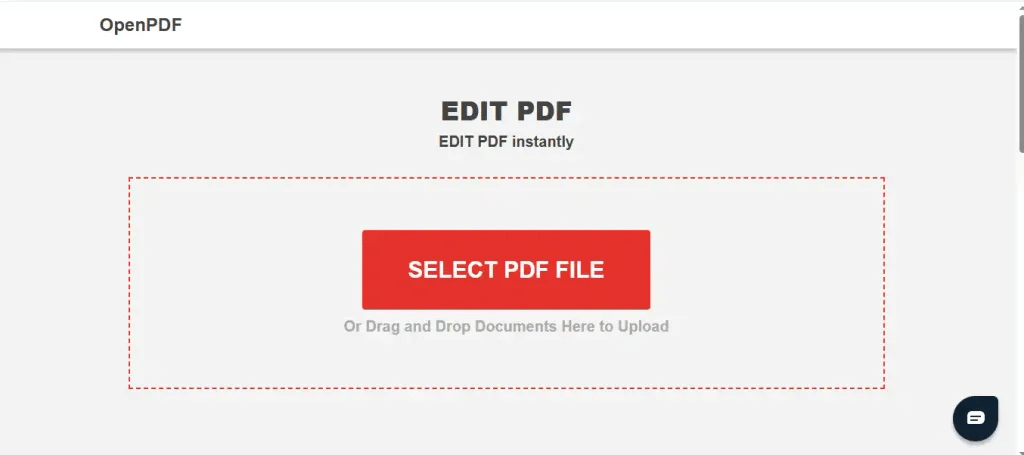
PDF24 Tools offers tools that work right in your web browser. This is useful if you don’t want to download or install any app on your phone.
With PDF24 Tools you can do things like combine PDFs, pages reduce file size or make other changes to your documents. The tools focus more on processing than text editing. So it’s best to check what each tool can do before you begin.
My advice: For changing existing text, start by checking PDFgear. For reading, reviewing, and signing documents, Adobe Acrobat Reader is another option. For quick PDF utilities, try PDF24.
How to Edit a PDF on Android for Free
If you use an Android phone, follow these steps to edit your PDF with a compatible editor such as PDFgear.
Step 1: Install a PDF Editing App
Open the Google Play Store. Search for PDFgear. Check the developer information. Then install the official PDFgear application.
You can also visit the PDFgear website to find the supported downloads, for PDFgear.
Step 2: Open Your PDF File
Open the app. Pick the PDF that you want to edit.
Your PDF might be in your Downloads folder in phone storage in Google Drive or, in a WhatsApp document folder. If you cannot find your PDF open the Files app on your phone. Type the PDF name into the search bar..
Step 3: Select the Editing Option
Once the document opens, look and waiting for the available editing tools.
Depending on the app, you may see options for ( yai ap ki app display k uper depend karta ha )
Editing existing text.
Adding new text.
Highlighting or underlining content.
Drawing or adding comments.
Inserting images.
Managing PDF pages.
Choose the feature that matches your task.
Step 4: Make Your Changes
Tap the text or area you want to change and follow the instructions shown in the app.
If the PDF contains selectable text and the editor supports direct editing, you may be able to replace or remove existing words. If you just want to add information, a text field may be sufficient. You can use it to add notes, dates, or other information to your document.
Step 5: Save the Edited PDF
I recommend that once you finish editing you use the apps Save, Export or Share option.
I recommend that if you can you save the document as a new file instead of overwriting the original. I recommend that this gives the document a backup if something goes wrong.
I recommend that finally you open the saved PDF and check that the text, images, signatures and page layout look correct.
How to Edit a PDF on iPhone for Free
iPhone users can also edit PDF documents without having to install a special editor.
For tasks the built-in Markup feature works well enough. If you need to change text that’s already in the PDF you might need a third-party app that’s compatible.
Step 1: Find the PDF
Open the Files app on your iPhone and locate your PDF document. It may be stored in Downloads, iCloud Drive, or another folder.
Step 2: Open the Markup Tools
Open the PDF file. Search, for the Markup icon, which is usually shown as a pen tip.
Depending on your iOS version and the document you can use Markup to draw or highlight. You can also add notes or place text in supported workflows.
Step 3: Add Your Changes
Select the tool that’s available and make your changes.
For example you can use the tool to highlight a sentence or to add a note to the document.
Remember that Markup is mainly made for annotations.
Markup does not allow editing of the original text, in every PDF.
Step 4: Save the Document
When finished, tap Done. Check the location of the file and reopen it to confirm the changes. If you need to replace existing paragraphs or manipulate PDF pages, use a dedicated PDF editor on iPhone that supports these features.
How to Edit a PDF on Mobile Without Installing an App
Sometimes you only need to make a quick change and I do not want to install another program.
In that case an online PDF tool may be more convenient.
Follow these steps:
Open your mobile browser.
Go to an online PDF editor.
Pick the PDF file from your phone.
Pick an action like adding text marking up or signing.
Do the changes that are needed.
Check the document.
Save the modified PDF to your phone.
Open the file that was downloaded to make sure that it was stored properly.
The exact process depends on the service. Some browser-based tools can add text boxes but cannot replace the original text inside a PDF.
Privacy tip: Stay safe by not putting identity papers, bank records, private agreements or secret work information, on a website unless you know and agree with how that service handles your information. When dealing with files use a computer that is not connected to the internet instead.
How to Edit Existing Text in a PDF on Mobile
People often want to change text in a PDF. That is one of the common reasons to look for a PDF editor.
Not every PDF is the same. Some PDFs contain text. Others are just scanned images of printed pages.
If your PDF contains selectable text, try these steps:
Open the PDF in an editor that lets you edit text directly; I find that quick.
Select the Edit Text feature; this is the step.
Tap the text you want to change; be precise.
Select the words or text block if the editor supports it; this helps.
Replace the content. Remove unwanted text; keep it clean.
Adjust the formatting if needed; it makes things tidy.
Save a copy. Review the result; double‑check everything.
If the editor only gives you an Add Text option it might not let you change the text that’s already there.
In that case try using an editor that lets you edit text directly.. If the layout of the PDF allows it turn the PDF into an editable document. Always check the formatting after you do the conversion.
How to Edit a Scanned PDF on Your Phone
A scanned PDF often behaves like a photograph. When I zoom in I can read the words. I cannot select individual sentences.
This happens because a scanned PDF page may contain an image than actual text.
To change the text I may need Optical Character Recognition, commonly known as OCR.
OCR attempts to recognise words, in an image and convert them into text that a compatible application can process.
Here is the general process:
Open a PDF tool that supports OCR.
Import your scanned document.
Run text recognition.
Check the recognised text for mistakes.
Edit the text in a compatible editor.
Export the updated document.
Review the final PDF carefully.
OCR is not perfect. OCR struggles with scans, handwritten notes, unusual fonts and complex tables and these issues can produce errors.
If you only need to add a date or comment adding a text box may be easier, than converting the scanned document.
How to Sign a PDF on Mobile
You do not always need to print a document just to sign it.
Many PDF apps let you create or insert a signature directly on your phone.
Steps to Sign a PDF
Open the PDF in an app that allows signing.
Choose. Sign, Sign or the option that is similar.
Make your signature by drawing it or typing it based on what the app offers.
Put the signature in the spot.
Change the size. Move it if needed.
Keep the file.
Open the saved PDF again to check where the signature is.
Before signing an legal document make sure the person who is receiving it accepts the kind of electronic signature you are using. Some documents need a way to sign. Always check that the method you are using is allowed.
How to Edit a PDF Without a Watermark
I notice that some PDF tools put their branding on exported documents. Other PDF tools keep watermark free. Give advanced features only to paid plans. Before you edit check the service’s terms.
To avoid unwanted watermarks:
Choose a tool whose free plan allows the export you need.
Check for free-plan limits before editing a long document. Preview the file before downloading it.
Open the final PDF and inspect each page. Please keep the original document as a backup.
If the tool adds a watermark try another editor that allows watermark‑free output, under its terms. Do not assume that every advertised free PDF editor offers all features at no cost.
Common PDF Editing Problems on Mobile
I Cannot Edit the Existing Text
I think your editor may only allow annotations or the document may be a scanned image. I suggest trying a PDF editor that lets you edit text directly. For documents I recommend looking for OCR support.
The Text Moves Out of Place
PDF formatting can sometimes change when the fonts are not available or when the document has a layout. Use a compatible editor and check the exported file carefully before you share it.
The App Asks Me to Pay
The feature you selected may need a subscription. You might want to check which tools are free and see if another editor offers the feature without payment.
My Edited PDF Has a Watermark
Please review the apps export conditions carefully. If this app does not offer watermark‑free downloads then you should look for another tool that can provide the export.
I Cannot Find My Saved PDF
Check Downloads, the Files app, your cloud storage, or the location selected during export. You can also search your phone for the document’s file name.
The PDF Is Too Large to Share
If the file is too big to send by email or through a message use a PDF compression tool that you trust. Once you have made the file smaller open the PDF to make sure that the text and pictures are still easy to read. The PDF compression tool that you trust should help make the file smaller. The text and pictures, in the PDF should still be easy to read after you have made the file smaller. Always check the PDF after compression to be sure.
Frequently Asked Questions
Can I edit a PDF on mobile for free?
Yes. You can use free mobile apps or browser-based tools for supported tasks such as annotations, signatures, and adding text. Editing existing text may depend on the app.
What is the best free PDF editor for Android?
The right choice depends on your requirements. PDFgear is worth considering for text editing and page management, while basic annotation tools may be sufficient for highlighting and notes.
Can I edit a PDF on iPhone without an app?
Yes, you can use built-in Markup tools for certain annotations. For replacing existing text or managing pages, you may need a dedicated editor.
How can I edit PDF text without paying?
Look for a tool that specifically supports free editing of existing PDF text. Check the current feature limits before starting, because some popular editors require payment for this function.
Can I edit a scanned PDF on my phone?
Yes, but editing the original text usually requires OCR or conversion into an editable format. For simple additions, you can often use text boxes or annotations.
Can I edit a PDF received on WhatsApp?
Yes. Save or open the PDF from WhatsApp, then choose a compatible PDF editor. After editing, save the new file and share it back through WhatsApp if needed.
Is it safe to edit PDFs online?
It depends on the service and the document. Use reputable providers, review their privacy practices, and avoid uploading confidential information unless you are comfortable with how the service handles files.
Final Thoughts
Editing PDF files on your phone is easier than a lot of people think. For jobs the tools that come with your phone or an online editor could work just fine. If you want to change text that’s already there organize pages or deal with documents that were scanned find an app that has those exact functions.
Before you pick a tool look at what the free version allows make sure your important files are safe and always check the PDF one time before you send it to someone.