Is your Windows 11 PC running slow? Learn how to speed up Windows 11 without software using simple built-in settings. Improve boot time, performance, and overall speed in just a few minutes.
Table of Contents
Why Windows 11 Becomes Slow
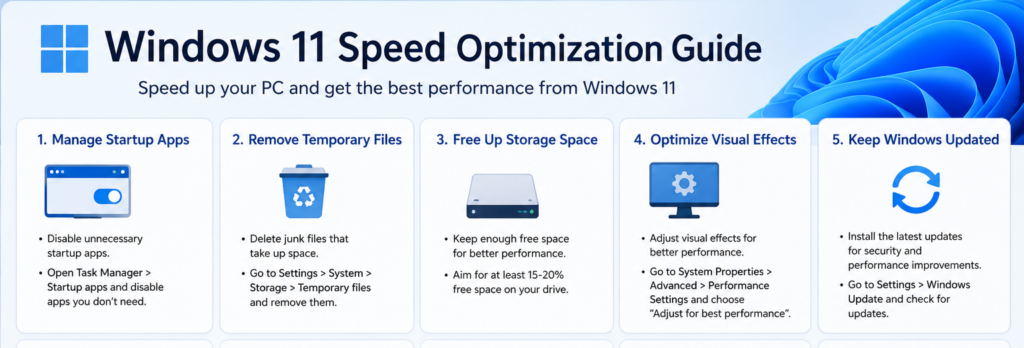
Restart Your PC Regularly
Disable Startup Apps
Remove Temporary Files
Free Up Storage Space
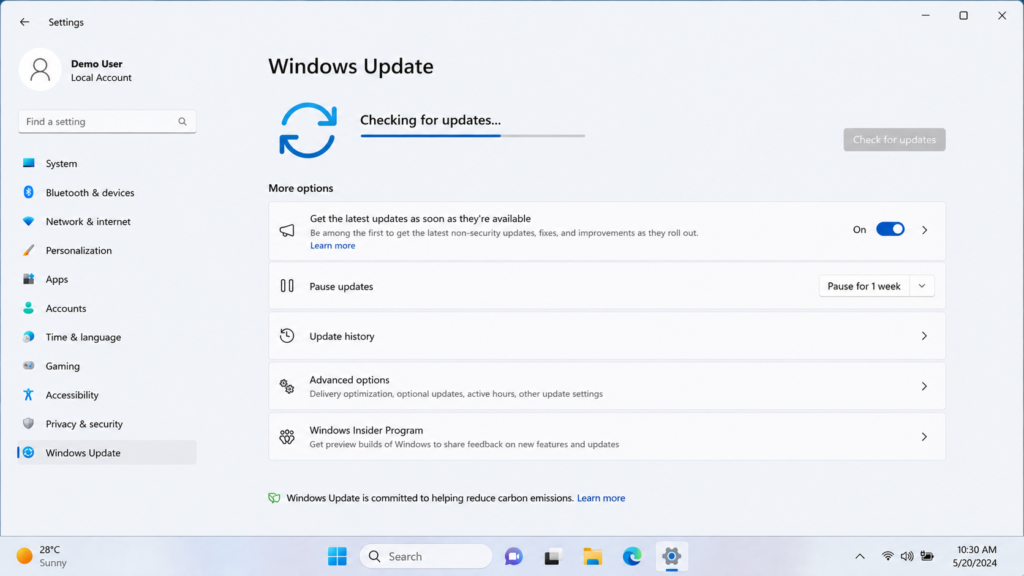
Keep Windows Updated
FAQs
Conclusion
How to Speed Up Windows 11 Without Software (Easy Ways That Actually Work)
Is your Windows 11 computer taking too long to start? Are applications opening slowly or freezing during normal use?
The good news is that you don’t need expensive optimization software to improve your computer’s performance.
Windows 11 already includes several built-in tools that can make your PC significantly faster when used correctly.
In this guide, you’ll learn practical methods to speed up Windows 11 without installing any third-party software. These methods are safe, beginner-friendly, and work on both laptops and desktop computers.
Whether you’re a student, blogger, office worker, or casual user, these tips can help improve your PC’s overall performance
Why Does Windows 11 Become Slow?
Over time, every Windows computer collects unnecessary files, startup programs, background processes, and outdated settings.
Some common reasons include:
Too many startup applications
Low storage space
Temporary files
Background apps
Visual animations
Outdated Windows updates
Fortunately, you can fix most of these problems in just a few minutes.
Method 1 — Restart Your PC Regularly
Many users rarely restart their computers. Instead, they simply close the laptop lid or keep the PC in sleep mode.
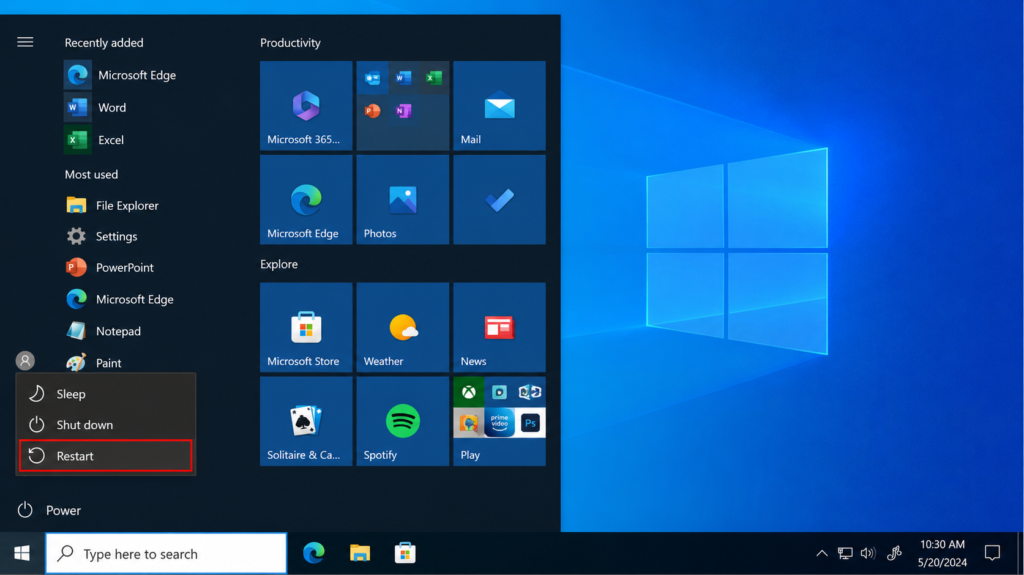
Restarting Windows clears temporary memory (RAM), stops unnecessary background processes, and refreshes system resources.
Steps
Click Start.
Select Power.
Click Restart.
Wait until Windows starts again.
Even a simple restart can noticeably improve system performance
Method 2 — Disable Startup Programs
Many applications automatically start whenever Windows boots.
These programs consume RAM and CPU resources before you even begin working.
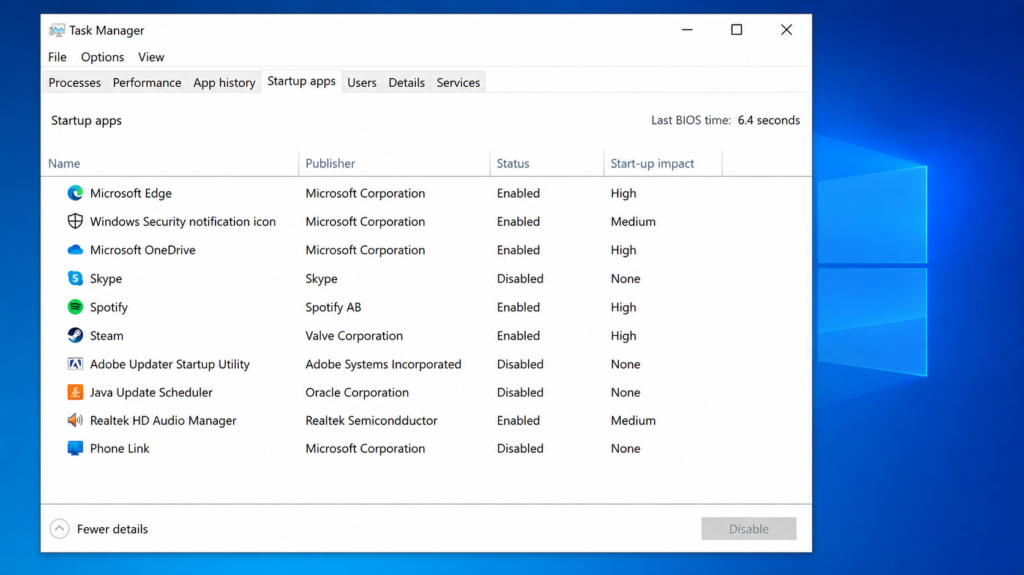
Disabling unnecessary startup apps is one of the easiest ways to make Windows 11 boot faster.
Steps
Press Ctrl + Shift + Esc to open Task Manager.
Click the Startup Apps tab.
Find apps you don’t need at startup.
Right-click the app.
Select Disable.
Avoid disabling essential Microsoft services. Only disable applications you recognize, such as Spotify, Discord, Zoom, or Adobe Creative Cloud (if you don’t need them immediately after startup).
Method 3 – Remove Temporary Files
At all time you browse the internet, install software, or update Windows, temporary files are Generated . These files help Windows perform certain type of tasks, but if they have no longer needed, they simply occupy storage space.
Over time, these useless files can slow down your computer/PC. Deleting them regularly is one of the simplest ways to improve Windows performance
Steps
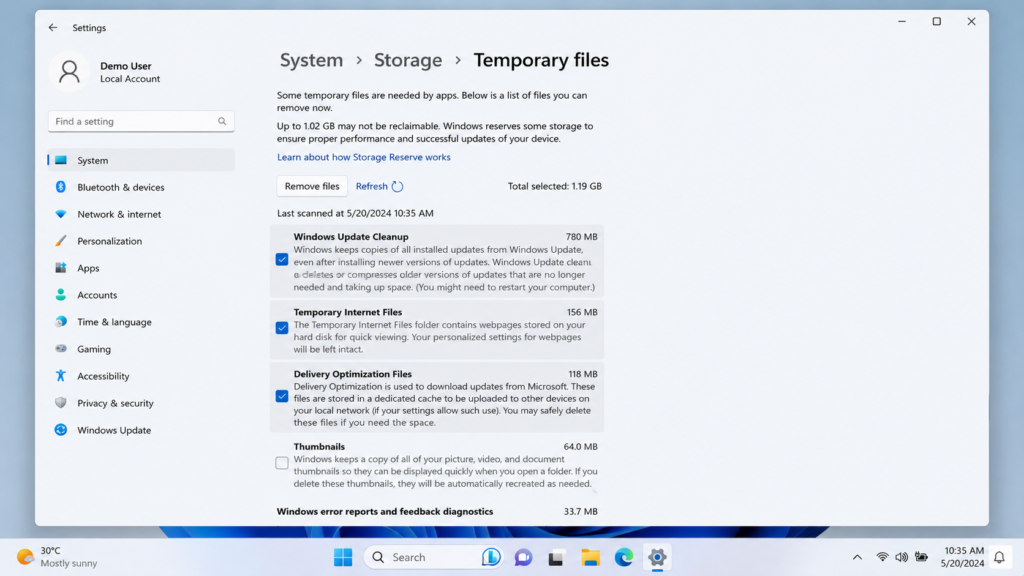
Press Windows + I to open Settings.
Go to System > Storage.
Click Temporary Files.
Select items such as:
Temporary Files
Delivery Optimization Files
Thumbnails
Recycle Bin (only if you don’t need deleted files)
Click Remove Files.
Pro Tip: Avoid deleting the Downloads folder unless you’re sure you no longer need its contents
Windows performs well and much better when your system drive (usually C:) has alots of free space. If your drive is almost full, Windows may become slow, especially during working ,updates and multitasking.
Try to keep at least 20–25% free space on your system drive.
Things You Can Delete
Large videos you no longer need
Duplicate files
Old downloads
Unused software
Old Windows installation files
How to Check Storage
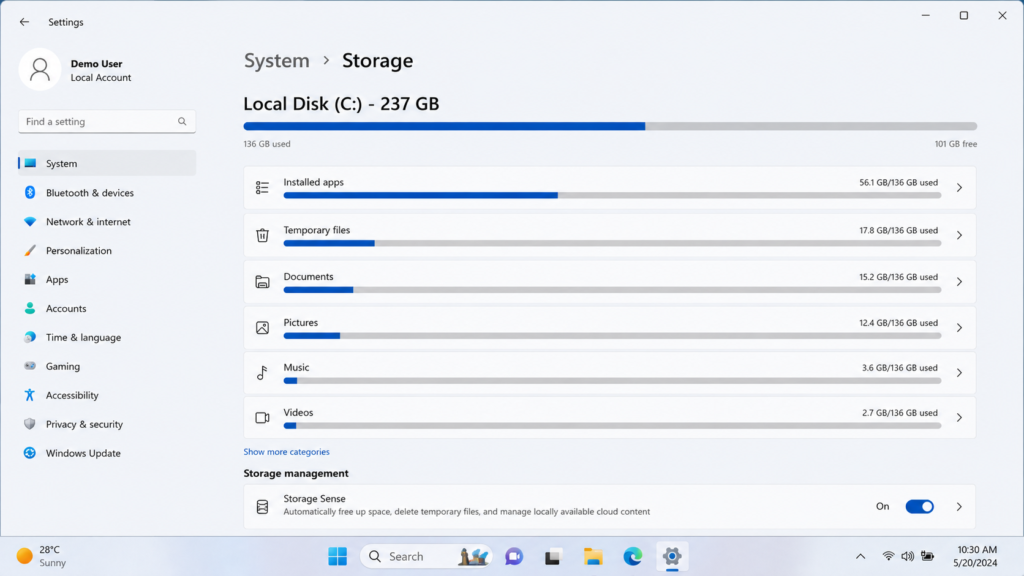
Open Settings.
Go to System > Storage.
Check which files are using the most space.
You can also enable Storage Sense, a built-in Windows feature that automatically removes temporary files and empties the Recycle Bin.
Method 5 – Keep Windows Updated
Many users ignore Windows updates because they think updates slow down their computers. In reality, updates often include bug fixes, security improvements, and performance optimizations.
Steps
Open Settings.
Go to Windows Update.
Click Check for Updates.
Install available updates.
Restart your computer.
Keeping Windows updated helps improve both security reliability and stability.
Frequently Asked Questions (FAQs)
1. Can I speed up Windows 11 without installing any software?
Yes. Windows 11 includes several built-in tools such as Storage Sense, Startup Apps, and Performance Settings that can improve your PC’s speed without installing any third-party software.
2. Is it safe to disable startup applications?
Yes, as long as you only disable non-essential applications like Spotify, Discord, Zoom, or Adobe Creative Cloud. Avoid disabling Windows system services or security software.
3. How often should I clean temporary files?
For most users, cleaning temporary files once every 2–4 weeks is enough to keep Windows running smoothly.
4. Will deleting temporary files remove my personal data?
No. Temporary files are created by Windows and applications. Deleting them will not remove your documents, photos, or other personal files.
5. Why is my Windows 11 still slow after trying these methods?
If you’ve followed all the steps and your PC is still slow, the issue may be related to older hardware. Upgrading from an HDD to an SSD or adding more RAM can significantly improve performance.
6. Is Windows Security enough to protect my PC?
For most users, Windows Security (Microsoft Defender) provides strong protection against malware and viruses. Keeping Windows updated further improves security.
Final Thoughts
A slow computer doesn’t always mean you need to buy a new one from market In many cases, simple adjustments to Windows settings can noticeably improve speed and responsiveness.
By disabling unnecessary startup apps, cleaning temporary files, freeing up storage, optimizing visual effects, and using the right power settings, you can make your Windows 11 PC feel faster without spending any money on optimization software.
For the best results, make these maintenance tasks part of your regular routine. Spending just a few minutes each month on basic system maintenance can help keep your computer running smoothly for years.
Conclusion
If this guide helped you speed up your Windows 11 PC, consider sharing it with friends or colleagues who may be facing the same issue. For more practical Windows tutorials, software recommendations, and technology tips, explore other guides on TechSolutionSpot.





Pingback: 10 Best Free PDF Editors in 2026 (No Watermark & Easy to Use)
Read Article
Pingback: Best Budget Laptop for Students (2026 Buying Guide)